/**********************************************************************/
/* Prepare hardware materials */
/**********************************************************************/
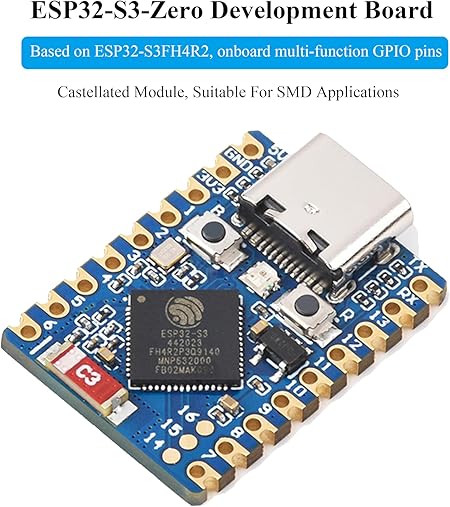
1.ESP32-S3-Zero
ESP32-S3 Mini Development Board, Based on ESP32-S3FH4R2 Dual-Core Processor, 240MHz Running Frequency, Support 2.4GHz Wi-Fi & Bluetooth 5, Onboard 4MB Flash Memory/2MB PSRAM
2.PCM5102
PCM5102 I2S IIS Lossless Digital Audio DAC Decoder Module Stereo DAC Digital-to-Analog Converter Voice Module
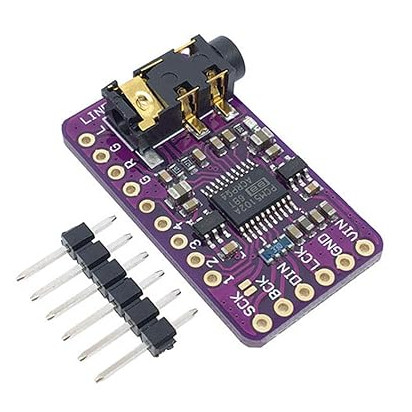
3. The output of board is AUX singal, So you need to have relevant adaptation devices, such as active speakers that support AUX input, or amplifiers that support AUX input.
/**********************************************************************/
/* Weld two plates together */
/**********************************************************************/
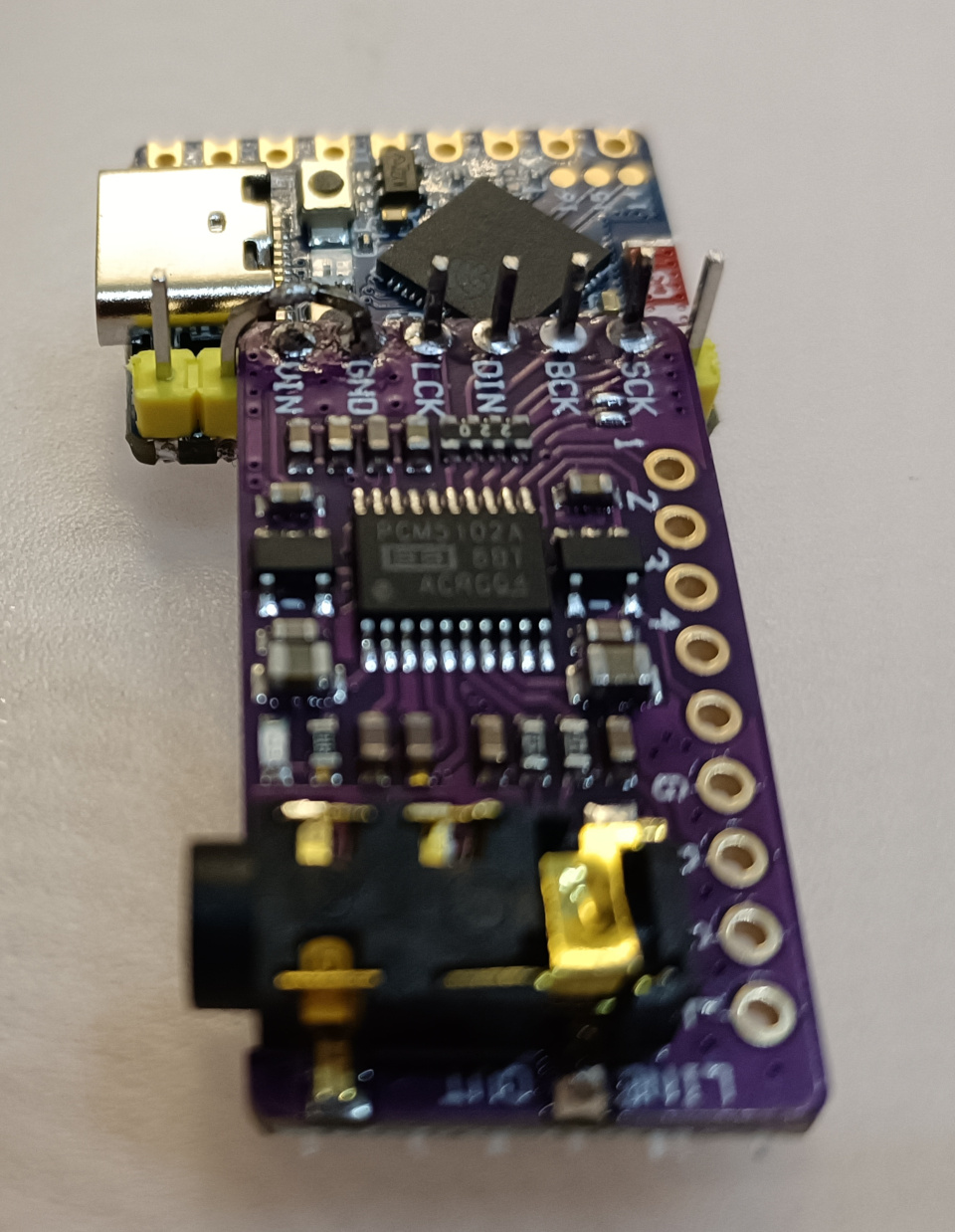
1. We recommend welding it in this way, where the pin correspondence between the two boards is as follows:
ESP-S3-Zero -------- PCM5102
GND ------- GND
3V3 ------- VIN
1 ------- GND(You can also choose not to connect)
2 ------- LCK
3 ------- DIN
4 ------- BCK
5 ------- (Do not connect to PCM5102 SCK Pin)
/**********************************************************************/
/* Burn firmware to ESP32-S3-Zero */
/**********************************************************************/
The software and hardware resources required for downloading firmware to flash are listed below.
Hardware:
1 x PC (Windows 7 [64 bits], Windows 10)
Software:
Flash Download Tool(https://dl.espressif.com/public/flash_download_tool.zip)
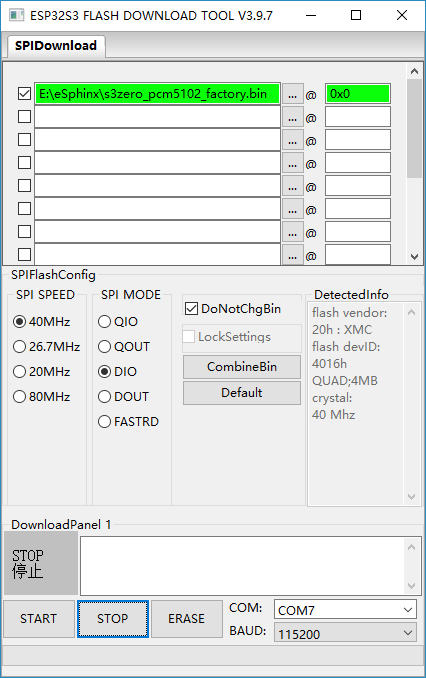
1. Open the download tool.
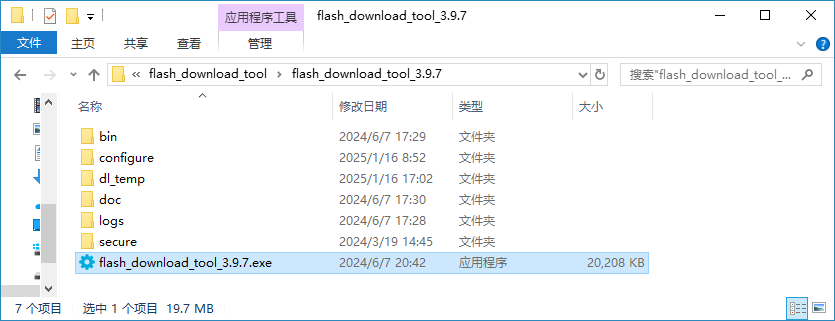
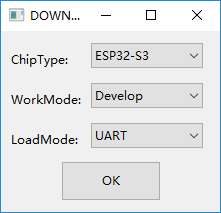
2. Set ChipType to ESP32-S3,click OK.
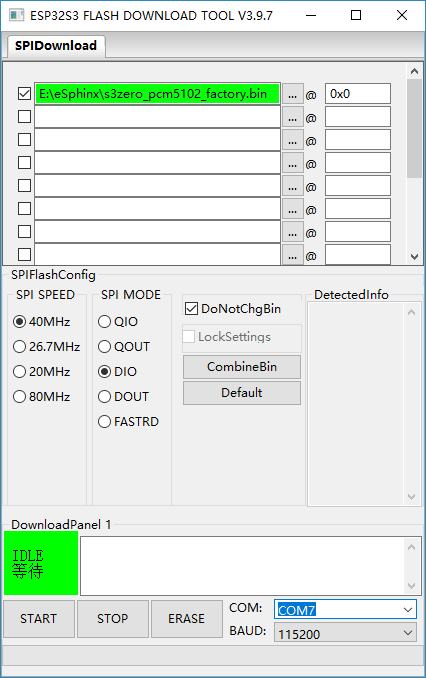
3. Select COM to real COM port , select the bin file path, check the box before the path, Enter the address, 0x0.
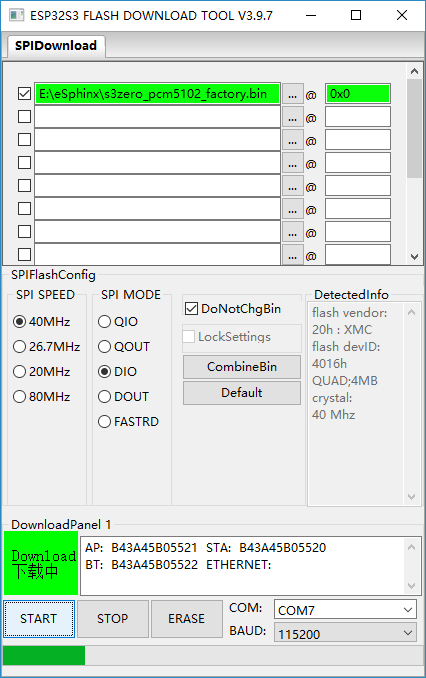
4. Click START to start downloading. During the download process, the tool will read the flash information and the chip’s MAC address.
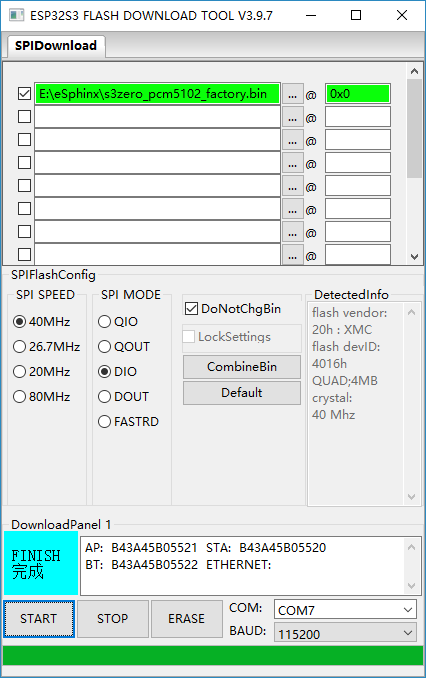
5. After the download is complete, the tool interface is shown in the following figure.
6. Click STOP, then close the window.
/**********************************************************************/
/* Connected to WIFI */
/**********************************************************************/
1. Restart ESP32-Zero, then you will hear a happy birthday song. And the LED lamp will flash 6 times at intervals, with different colors of red, green, and blue in sequence. This Lamp Signal indicates that WIFI is not connected.
2. We can use ESP-TOUCH App to help ESP32 devices connected to WIFI. Only run once.
Espressif’s ESP-TOUCH protocol implements the Smart Config technology to help users connect ESP8266EX-embedded devices to a Wi-Fi network through simple configuration on a smartphone.
You can find ESP-TOUCH Resources at here:
https://www.espressif.com.cn/en/products/software/esp-touch/resources
Title |
Platform |
Version |
Release Date |
Download |
|---|---|---|---|---|
ESP-TOUCH for Android |
Android |
V2.0.0 |
2021.02.08 |
|
ESP-TOUCH for iOS |
IOS |
V2.0.0 |
2020.04.20 |
3. Open ESP-TOUCH, Click EspTouch
4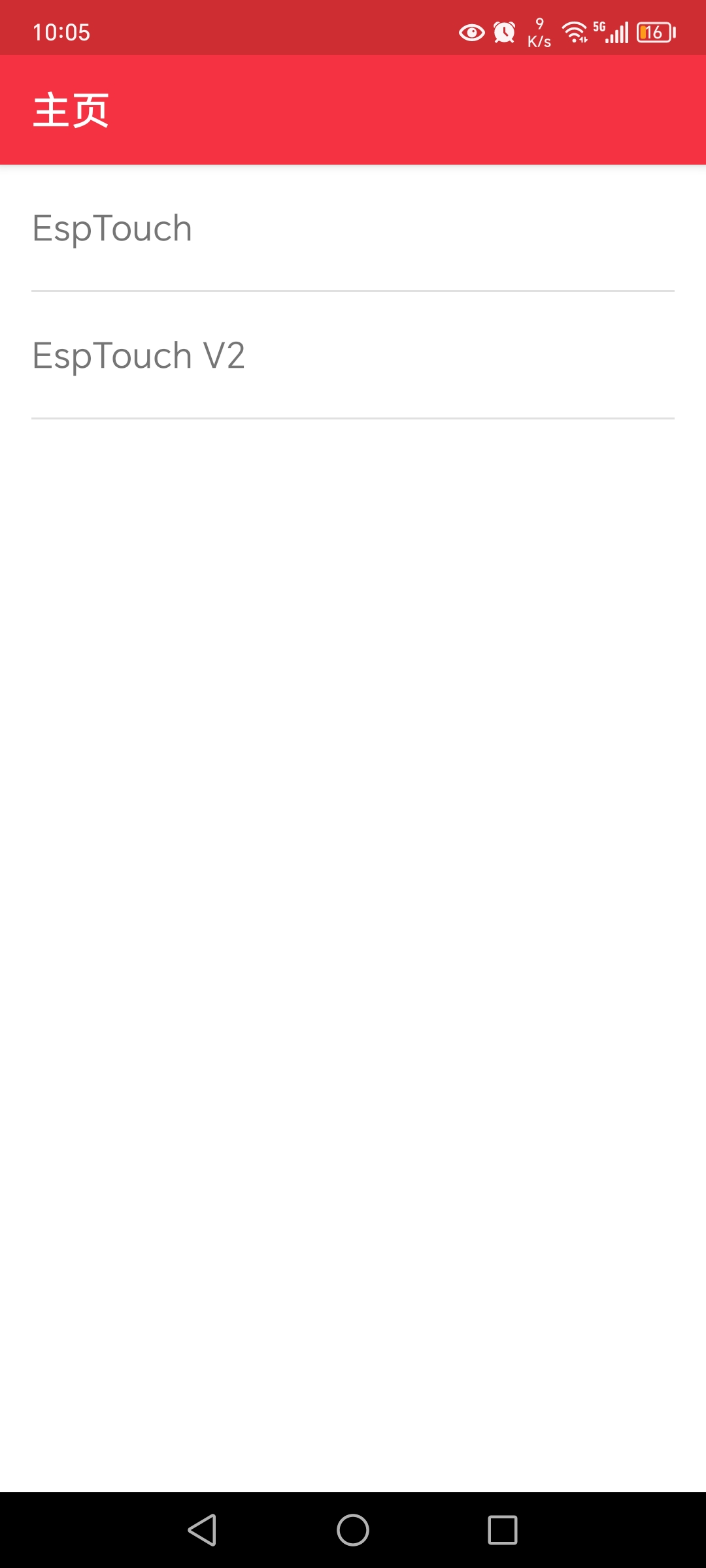
.
Check if WIFI SSID is OK, then input password
5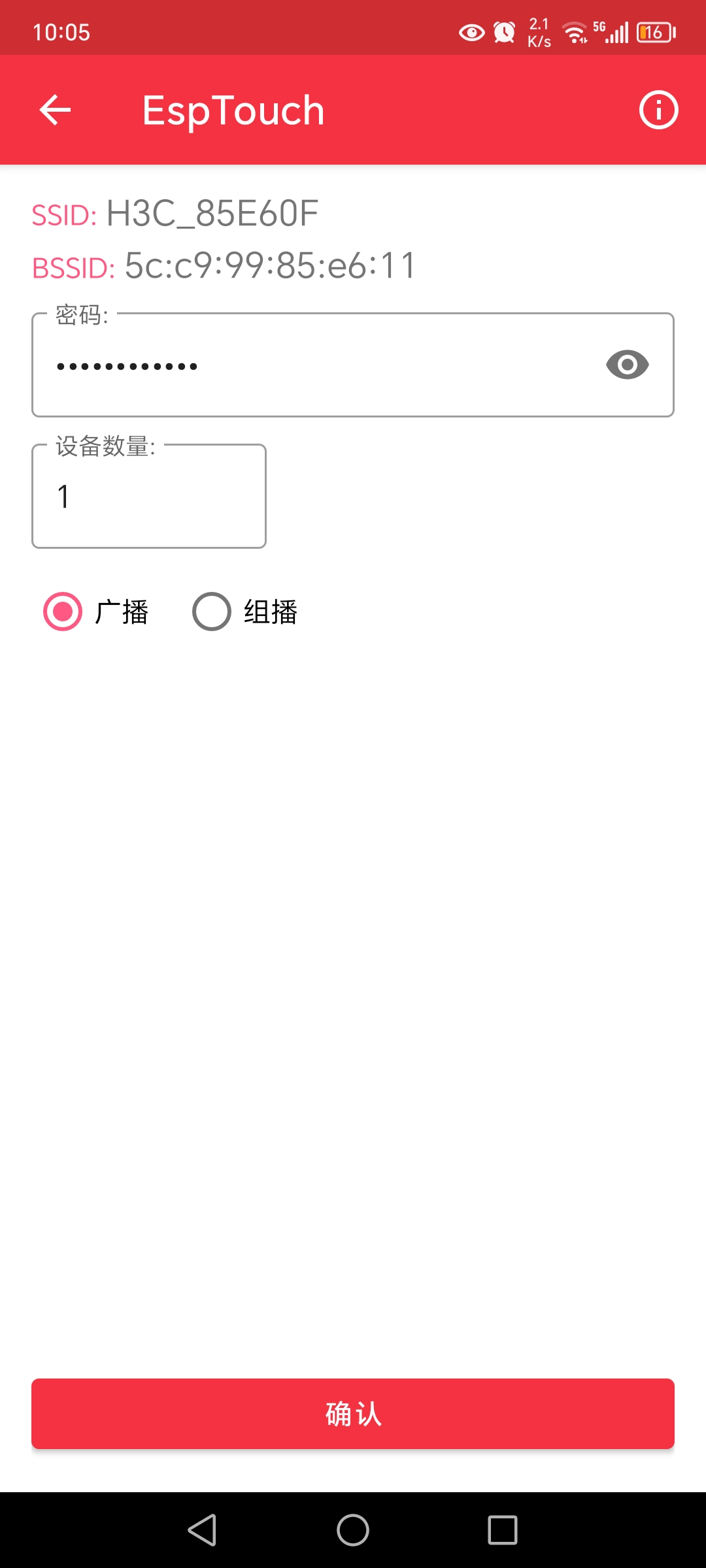
.
After connected to WIFI, The ESP32-S3-Zero will auto restart, And
will try to OTA, if in OTA progress, lamp signal is bule+green light
random flash.
6. After OTA, You will hear radio.
/**********************************************************************/
/* The use of Button */
/**********************************************************************/
1. Double click:
Switch between network/ favorites section, where green represents favorites and blue represents network.
2. Click:
Change channels within this section.
3. Long press:
a. If it is a favorites section, remove the currently playing radio station from the collection section.
b. If it is a network section, add the currently playing radio station to the favorites section.
/**********************************************************************/
/* The Lamp Signal */
/**********************************************************************/
Lamp Color |
Light On |
Flash times |
indicates |
|---|---|---|---|
Red |
Yes |
--- |
Device booting |
Red |
--- |
5 |
WIFI not connected |
Green |
--- |
1 |
Favorites section,Streaming media is playing |
Blue |
--- |
1 |
Network section,Streaming media is playing |
Green |
--- |
3 |
Favorites section,no audio is playing |
Blue |
--- |
3 |
Network section,no audio is playing |
Green |
Yes |
--- |
Favorites section,Long Press |
Blue |
Yes |
--- |
Network section,Long Press |
Green+Blue |
--- |
random |
In OTA Progress, do not power OFF ! |
R+G+B |
--- |
3 |
Fireware is Factory bin, must reboot to OTA |
R+G+B |
--- |
6 |
Fireware is Factory bin, WIFI not connected |
v20250525
www.eSphinx.com